

Published 28 October 2026 · By JonsTech
How to Organise SaaS Screenshots for Social Media Campaigns
Build a practical screenshot library for future SaaS campaigns with clear names, useful collections and descriptions, then reuse selected assets in WooshOut Campaign Studio.
The easiest screenshot library to use is one organised around the questions your future posts need to answer. Give each file a clear name, group related screenshots into small collections, and add a short description explaining what the image shows. Then, when a product update or launch comes around, you can find the right visuals without rummaging through old folders. WooshOut’s Campaign Studio supports this workflow with asset collections, search, editable descriptions and image campaigns built from screenshots you upload.
The important distinction: AI can help organise and compose your assets, but Campaign Studio’s image campaigns use your selected screenshots. They are not new product screens invented from a text prompt. You still need to review the finished posts, check every screen and headline, and approve what you want to schedule.
Start with a naming system you can keep using
A screenshot filename should tell you enough to recognise the file before you open it. Names such as “Screenshot 14” or “New dashboard” might make sense on the day you save them, but they quickly lose meaning when you have several releases and product areas to manage.
Use a consistent order: product or area, screen or feature, and version or date if that will help you identify the right capture. For example, a hypothetical calendar app might use names such as “Calendar-Week-View-v2” or “Reminders-Settings-2026-09”. Keep names short enough to scan, and avoid including confidential customer information in filenames or screenshots.
Before uploading, check that the screenshot is still accurate. Remove test data, personal details, unfinished interface elements and anything you would not want shown publicly. If the product has changed since the image was captured, either update the screenshot or make the older version unmistakable in its name. A useful library should help you avoid publishing a polished image of a feature that no longer works that way.
Group screenshots by a job, not just by upload date
Collections make it easier to find a useful set of screenshots when you are planning a campaign. Choose groupings that match how you expect to reuse the images. For a SaaS product, that could mean collections for onboarding, reporting, integrations, a new feature, or launch-approved screens. A collection called “Reporting” gives you a better starting point for an analytics post than a folder named “September uploads”.
Keep collections focused enough that the choice is useful. If a set grows to include unrelated product areas, split it into smaller groups, such as “Reporting-Dashboard” and “Reporting-Export”. If you are preparing a one-off launch, a collection named for the feature or release can keep its approved visuals together. You do not need a complicated taxonomy; a few clear, consistently named collections are easier to maintain than a detailed system nobody remembers to follow.
Add descriptions that help with selection
A filename identifies a file; a description explains why it might belong in a post. Write one short, factual sentence that says what the screen shows and what is worth noticing. For example: “Weekly calendar view with three sample events; use for planning and overview posts.” That is more helpful than “nice screenshot”, and it gives you a reminder to check whether the sample data is suitable for the campaign.
Describe what is visible rather than making a marketing claim. “Dashboard with export controls” is a useful description. “The fastest reporting tool” is a claim that needs evidence and does not explain what is in the image. If a screenshot contains a particular version, plan or integration, include that detail only when it is accurate and useful for choosing the asset.
Build a small, reusable screenshot collection
Pick one clear campaign theme, such as “getting started with the weekly planner” or “what changed in the new reporting screen”.
Choose a handful of current screenshots that support that theme. A collection might include the starting screen, a key action, and the resulting view. Only include screens that tell a useful part of the story.
Name each image consistently and add a short description. Check that the screens are legible at social-post size and that no private or misleading data is visible.
Review the collection before a campaign. Remove duplicates and outdated captures, and add new screenshots when the interface changes. Treat this as a small maintenance habit, not a demand to catalogue every screen in the product.
For example, a hypothetical scheduling app could keep a “Launch-Weekly-Planning” collection containing a calendar view, a reminder setting and an upcoming-events screen. Later, those images could support posts about different aspects of the same feature. The collection is a set of ingredients, not a finished campaign: choose only the screens that fit the message you are making now.
Find and reuse assets in Campaign Studio
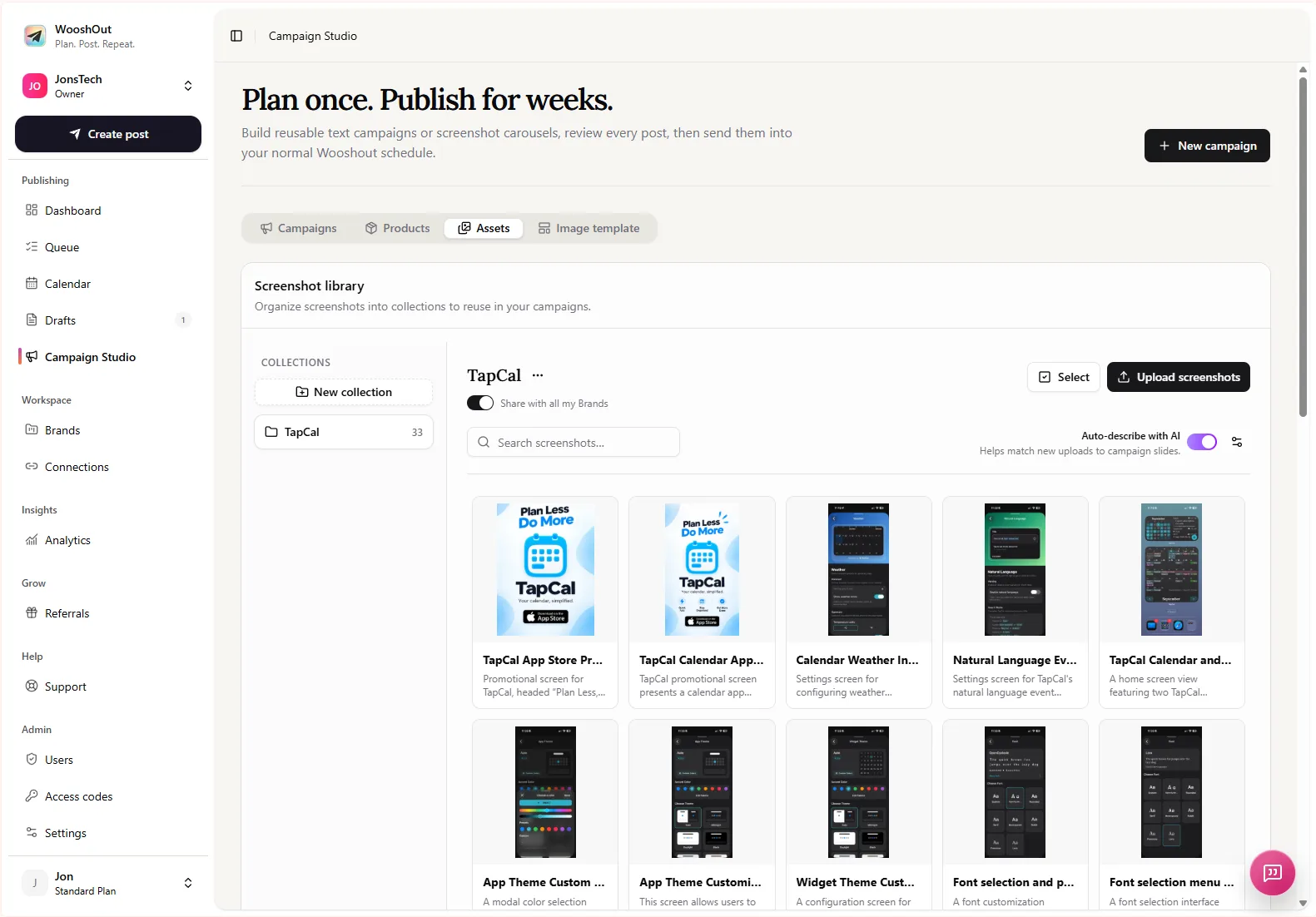
WooshOut’s Campaign Studio includes an Assets area for uploaded screenshots. You can organise assets into named collections, search the library, and edit descriptions. The library also offers AI-generated descriptions for screenshots, which you can review and change. Treat those descriptions as a starting point: check that they accurately describe the screen rather than assuming the suggestion has recognised every detail.
When you create an image campaign, select the screenshots that fit the idea. Campaign Studio uses those images in carousel-style posts, combining them with editable headlines, a gradient and a phone frame. Each carousel has three to six slides. You can review and edit the generated posts and slide headlines, remove posts that do not fit, and choose compatible destinations before scheduling the approved series. This is a way to compose posts from your product visuals, not to generate a new interface or video from a prompt.
A good review checks two things separately: whether the screenshot is the right one, and whether the finished post says something accurate about it. Confirm that the headline matches the feature shown, text is readable, and any call to action makes sense for the destination. Adapt the copy where needed rather than assuming one caption will suit every social network. Campaign Studio gives you a draft to work with; the publishing decision remains yours.
Reuse assets across Brands with care
If you manage more than one business or product, keep each Brand’s work clearly separated. WooshOut’s asset library supports collections that can be made available across your own Brands. That can help when an approved screenshot is genuinely relevant in more than one workspace, but it does not mean every image should be reused everywhere. Check the active Brand, the image context and the connected publishing destinations before building a campaign. Sharing an asset collection is not the same as sharing social accounts or schedules.
Keep product-specific or confidential material in the Brand where it belongs. If a screenshot is shared, make sure its description explains the product context and any restrictions that matter. The cross-Brand sharing controls can change, so confirm the options in your account before relying on them for a live campaign.
A library is useful only if it stays current
Set a simple review point when a feature changes or a campaign ends. Replace screenshots that no longer match the product, update descriptions that have become ambiguous, and keep a clear distinction between approved assets and captures that still need checking. You do not need to rebuild the library for every post. The aim is to make the next sensible screenshot easier to find and safer to reuse.
If you want to turn a small, prepared set of product screens into a campaign, explore WooshOut’s Campaign Studio workflow. Before publication, please supply or capture a genuine Campaign Studio screenshot showing the asset library and a worked example of a small, clearly labelled screenshot collection. The available library image shows the Assets tab and a TapCal collection with 33 items; it does not demonstrate the requested small-collection example. Verify the deployed asset-library controls and cross-Brand sharing behaviour against the live product before publishing.