

Published 22 October 2026 · By JonsTech
What to Post on Social Media When Your SaaS Has No News
No launch or feature update? Use useful tips, customer questions, product examples and screenshots to build a practical SaaS content series, then review and schedule it with WooshOut Campaign Studio.
When your SaaS has no launch news, post about the work your product helps people do: share a practical tip, answer a genuine customer question, show one product detail, or explain a screenshot. These ideas are useful between releases because they give people something to learn or understand, rather than dressing up an announcement that does not exist. WooshOut Campaign Studio can turn a focused brief into editable text posts or screenshot-based image carousels; you review the drafts, choose suitable destinations and schedule the series you approve.
Four useful post types for quiet weeks
A quiet product roadmap does not mean you have nothing worth saying. It means the subject shifts from what changed to what your audience needs to know. Start with a small mix, and make each post answer a different question.
Teach one small thing. Share a short checklist, a common mistake to avoid, or a simple way to approach a task your audience already has. Keep the advice useful on its own, even for someone who does not use your product.
Answer a real FAQ. Use questions from support conversations, onboarding, sales calls or your community. Give the direct answer first, then add an example if it helps. Do not frame a question as customer feedback unless you have actually received it, and remove identifying details before sharing.
Show a product use case. Pick one action or screen and explain what someone can do there. A short, specific walkthrough is easier to follow than a tour of every feature.
Highlight an existing screenshot. A current screen can help explain a setting, workflow or design choice without claiming that it is new. Add a clear caption so people know what they are looking at and why it matters.
These are starting points, not a rule to post every day. Choose the ones you can support with accurate product details, then leave room for timely questions or updates that come up during the week.
A concrete example: TapCal
The TapCal examples in WooshOut Campaign Studio show posts about calendar widgets and scheduling. That gives us visible product material to work with, without needing to invent a launch or customer result. For someone considering a calendar app, an illustrative audience question might be: “What can I see in the calendar widget?” This is a suggested question for planning, not a claim that a customer asked it.
From that starting point, a small series could take different angles: explain what the widget screen shows; offer a practical tip for keeping upcoming plans visible; show the scheduling screen and describe what it contains; or share a screenshot carousel that walks through the relevant screens. Each post should stick to what the product actually shows. If you want to claim the widget syncs with a particular service or saves users time, verify that detail before including it.
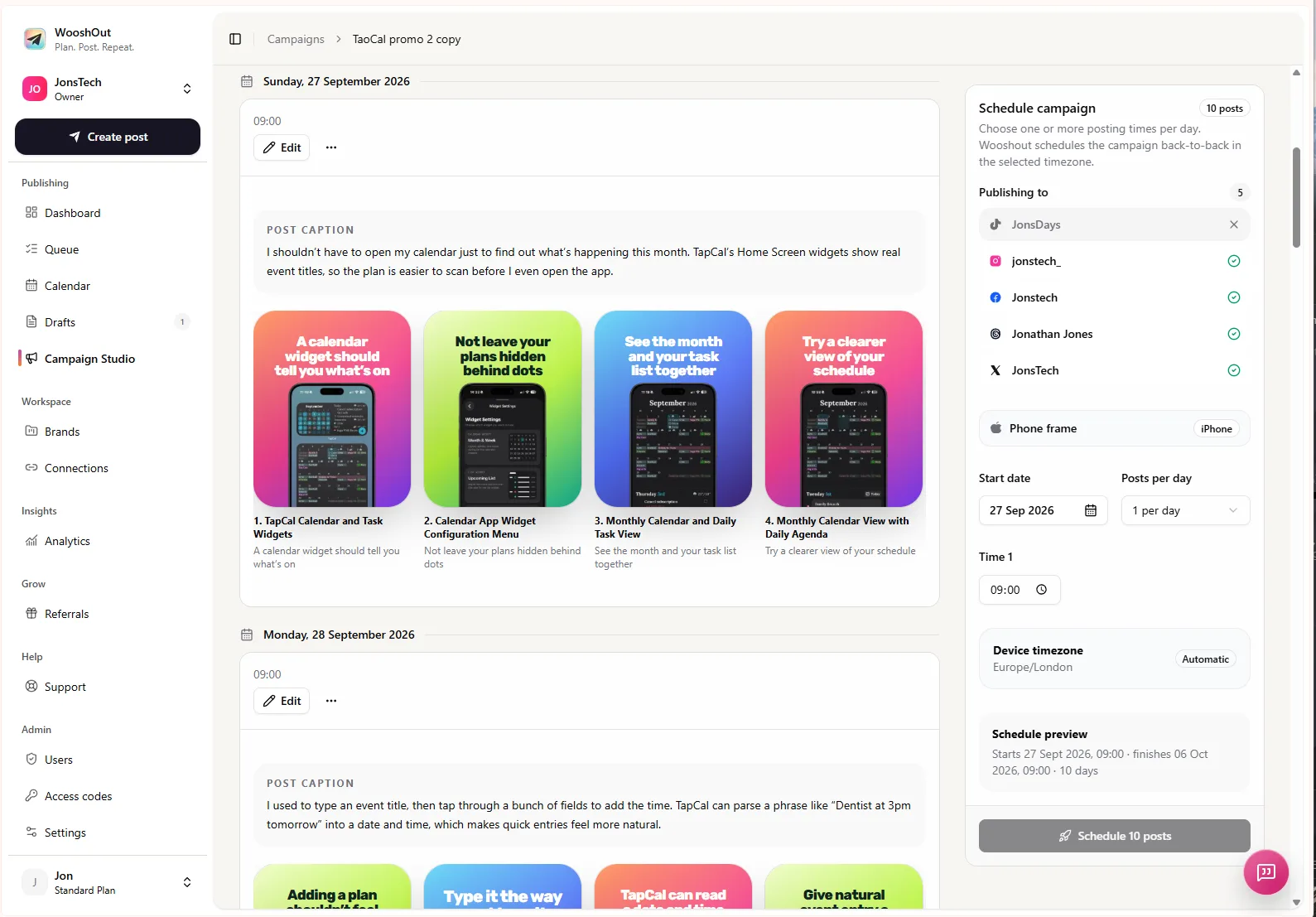
The Campaign Studio screen illustrates an image campaign with carousel graphics and a scheduling panel. It is an example of the workflow, not evidence of customer feedback or campaign performance.
Turn one brief into an editable campaign
Writing a separate post from scratch for every idea can make a quiet week feel like more work than it needs to be. In Campaign Studio, start with the product details you can verify, the audience you want to reach and a brief describing the posts you need. For the TapCal example, a brief might ask for clear, standalone posts about calendar widgets and scheduling for people who want to understand how a calendar app looks and works. It could also ask the drafts to avoid unverified integrations, testimonials or performance claims.
Campaign Studio has two distinct formats. A text campaign generates editable standalone posts directed at Facebook, Threads and X. You review them and choose connected destinations; the generated batch is not automatically suitable for every account. An image campaign uses screenshots you provide to create carousel-style image posts. Each carousel has three to six slides combining selected screenshots with headlines and a reusable template. These are not AI-generated videos or artwork created from a text prompt.
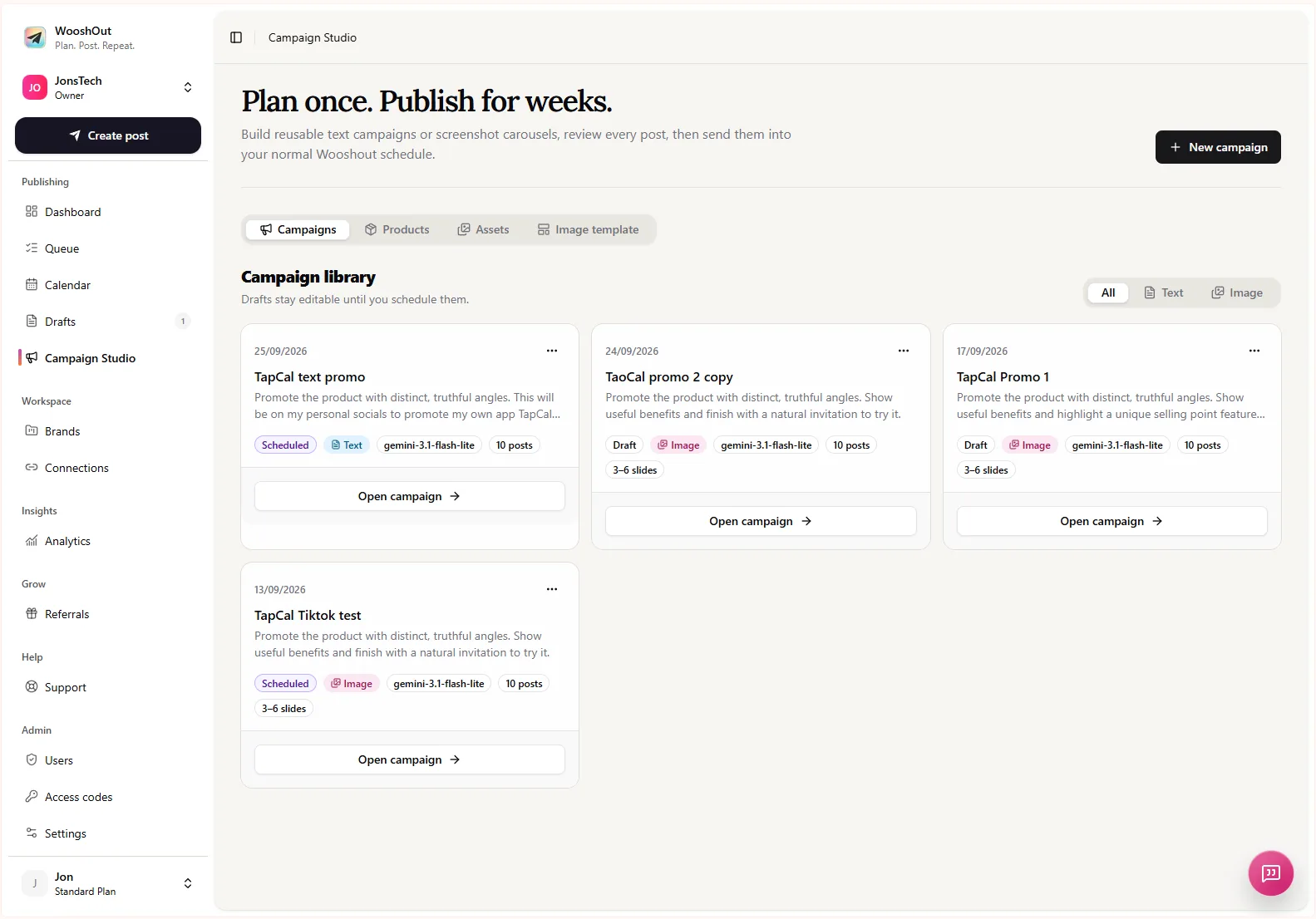
The campaign library shows the two formats side by side, including draft and scheduled campaigns. It can help you picture a repeatable process: prepare a brief and assets, review the generated material, then schedule what is ready.
A practical review before scheduling
Check the facts. Confirm feature names, screen details, availability and any instructions against the current product. Remove claims the brief cannot substantiate.
Give each post a different job. Keep the advice, FAQ, product example and screenshot highlight distinct. Delete drafts that repeat the same point with only a different opening line.
Edit for your voice. AI drafts are starting points. Rewrite stiff wording, add the useful detail only you know, and make sure every post makes sense without the rest of the series.
Check format and destination. Text campaigns are directed at Facebook, Threads and X. Image campaigns can be used with TikTok, Instagram, Facebook, Threads and X, subject to the selected image mode and compatibility checks. YouTube is not an image-campaign destination. Check the options shown in WooshOut before planning around a specific destination.
Set the cadence and inspect the schedule. Choose the start date, posting times and timezone, then review the planned series before scheduling it. The approved campaign appears in the normal Calendar and Queue views.
For a closer look at how to shape an educational series from product information, see Create a SaaS educational content series from a product brief.
Keep the plan useful, not busy
A short sequence of genuinely helpful posts is better than padding the calendar with thin variations of the same sales pitch. If one draft answers a question well, publish it. If a screenshot is hard to read or does not explain anything on its own, choose a clearer asset or leave it out. The goal is to make your product and expertise easier to understand, not to pretend every week brings breaking news.
WooshOut Campaign Studio can help turn the brief and materials you already have into editable posts, then schedule the ones you approve. For the full account connection, composition and publishing process, see the WooshOut workflow guide.